Before you start
This guide is based on Odoo 19 with module version 19.0.4. The module is available for Odoo 15 up to and including 20. In other versions or in a customised Odoo environment, names and the location of settings may differ slightly. In the Dutch Odoo interface, Point of Sale is called Kassa; both names are given below.
- A CCV or Worldline payment terminal from Pin Vandaag that is online and activated for the cloud integration.
- The Terminal ID and API key from Pin Vandaag. Not received them yet? Request your API details or e-mail [email protected].
- Administrator rights in Odoo for Apps and the Point of Sale settings.
- For your own server: access to the folder with additional modules (addons) and the ability to restart the Odoo service.
- The Point of Sale (Kassa) and Invoicing (Facturatie) apps are installed automatically if they are not yet active.
Download and install the module
Checking your Odoo version: go to Settings and scroll all the way down. Under About you will see the version, for example Odoo 19.0. Always choose the same major version in the Apps Store.
Your own Odoo server
- Open the POS Pin Vandaag module in the Odoo Apps Store, choose your Odoo version under Versions and click Download for v …. The module is free of charge.
- Unzip the zip file. You will get a folder named pos_pinvandaag.
- Place this folder in the additional modules folder of your Odoo server. This is one of the folders listed under
addons_pathin the Odoo configuration file. Do not change the folder name. - Restart the Odoo service.
- In Odoo, switch on developer mode: Settings → Activate the developer mode (at the bottom of the page).
- Go to Apps and choose Update Apps List (Apps-lijst bijwerken) in the top menu bar. Confirm with Update.
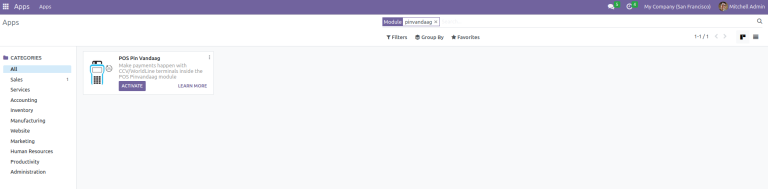
- Search Apps for Pin Vandaag, open POS Pin Vandaag and choose Activate (Activeren). Wait until Odoo has completed the installation.
Odoo.sh
- On the module's page in the Apps Store, choose Deploy on Odoo.sh, or add the pos_pinvandaag folder to the Git repository of your Odoo.sh project and push to your branch.
- First test the installation on a staging branch before activating the module in production.
- Then go to Apps in Odoo, choose Update Apps List and activate POS Pin Vandaag.
Configure a payment method
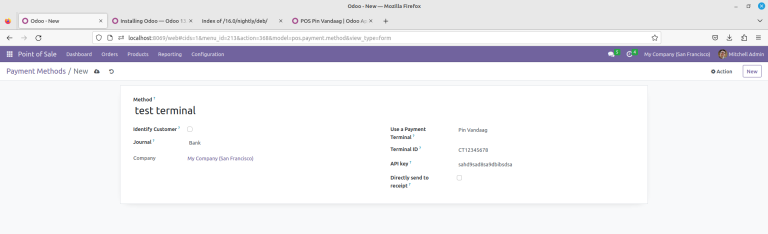
- Go to Point of Sale → Configuration → Payment Methods (Kassa → Configuratie → Betaalmethoden).
- Choose New to create a new payment method.
- Give the payment method a recognisable name, for example Pin Vandaag or the name of the terminal.
- Under Journal, choose a journal of type Bank. A payment terminal does not work with a cash journal.
- In the Payment Terminal (advanced) block, choose the Pin Vandaag option. The Pin Vandaag settings block then appears below it.
- Enter the Terminal ID and API key provided by Pin Vandaag exactly, without spaces before or after.
- Leave API host set to Primary API (rest-api.pinvandaag.com). Only choose Backup API if Pin Vandaag asks you to.
- Decide whether Directly send to receipt should be switched on (on by default). Odoo then automatically completes the order after a successful card payment and immediately shows the receipt screen. If the option is off, the cashier clicks Validate themselves.
- Save the payment method.
Link the payment method to the correct point of sale
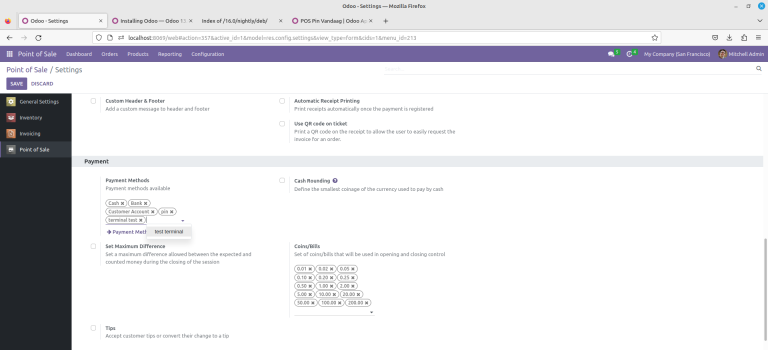
- Go to Point of Sale → Configuration → Settings and choose the correct point of sale at the top.
- In the Payments section, add the Pin Vandaag payment method you have just created under Payment Methods.
- Make sure you choose the correct payment method if you manage multiple terminals or shops.
- Save the settings.
- Then reopen the payment method via Point of Sale → Configuration → Payment Methods and check that Payment Terminal (advanced) is still set to Pin Vandaag and the Terminal ID is filled in. Adjust this if necessary and save.
Make a test payment
- Close an open POS session and start a new session, or reload the point of sale in the browser, so that the changed configuration is loaded.
- Add a test product or small test amount to the order.
- Open the payment screen and choose the Pin Vandaag payment method.
- Check that the same amount automatically appears on the correct payment terminal.
- Complete the payment on the terminal. Odoo checks the status automatically and marks the payment line as paid.
- Check that the order is completed. The receipt will then show Betaald via Pin Vandaag (paid via Pin Vandaag), together with the details of the card receipt.
Daily use
- Cancelling a payment: cancel the payment line in Odoo's payment screen. The module then sends a cancellation to the terminal.
- Waiting time: Odoo waits a maximum of 90 seconds for the terminal. If there is no response, a message appears and you can try again or cancel.
- Return or refund: an order with a negative amount (for example a return via the Refund button) is sent to the terminal as a refund payment. Card refunds must be enabled on your terminal for this; see Card refunds.
- Receipt: the card receipt from the terminal is stored with the payment line and shown on the receipt.
Updating the module
- Download the latest version for your Odoo version from the Odoo Apps Store.
- Replace the existing pos_pinvandaag folder with the new folder (on Odoo.sh: commit and push the new version) and restart the Odoo service.
- In developer mode, go to Apps, search for POS Pin Vandaag, open the module and choose Upgrade (Upgraden).
- Close open POS sessions and start them again. Then make a test payment.
Troubleshooting
POS Pin Vandaag cannot be found in Apps
Check that the pos_pinvandaag folder is directly in a folder from addons_path (not in an extra subfolder), that the module matches your Odoo version and that you have restarted the Odoo service. Then choose Update Apps List again in developer mode.
Pin Vandaag is not listed as a terminal option
Check that the module has been fully activated and that your Odoo user has administrator rights for Point of Sale. Look in the Payment Terminal (advanced) block of the payment method and reload the page.
Message "No terminal configured for Pin Vandaag"
No Terminal ID has been entered for the selected payment method. Enter the Terminal ID, save and reload the point of sale.
Message "No payment method for terminal …" or "No API key configured"
The Terminal ID does not match a payment method, or the API key is missing. Check both details exactly, without spaces.
Message "Could not start transaction"
The Pin Vandaag cloud refused the transaction or could not be reached. Check that the Terminal ID and API key belong together, that the terminal is online and that the Odoo server can reach rest-api.pinvandaag.com via HTTPS.
Pin Vandaag setting has disappeared
Is the payment method no longer set to Pin Vandaag after saving the Point of Sale settings? Choose Pin Vandaag again under Payment Terminal (advanced), check the details and save.
Message "No response from terminal"
The terminal did not return a result within 90 seconds. Check the terminal and see whether the payment was successful there before checking out again.
The payment is uncertain
Do not repeat the payment straight away. First check the transaction result on the terminal, in Odoo and in the transaction overview. Write down the amount, time and any error message.