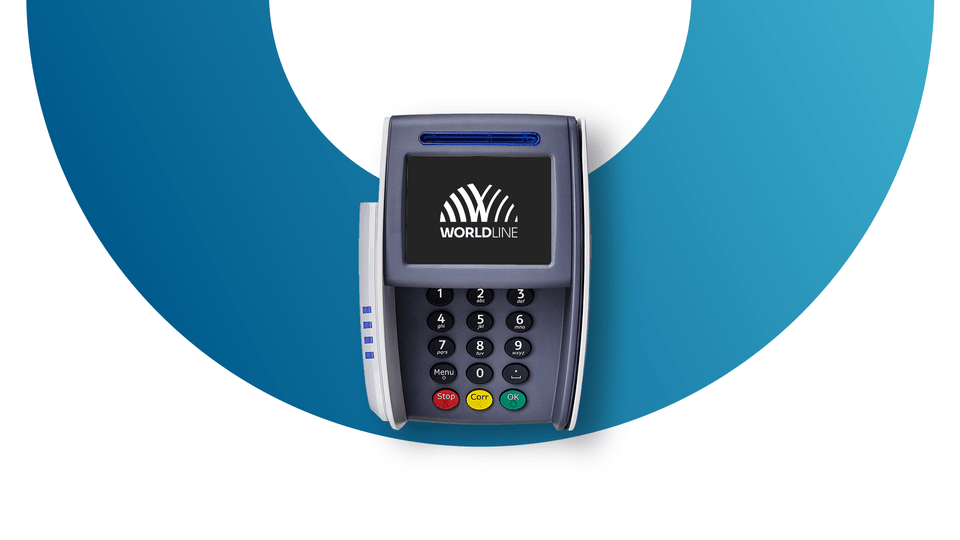
Before you start
The YOMANI can be used standalone, with a merchant module or connected to a POS system. The available screens and steps may therefore differ per installation.
- Keep the terminal connected to the power supply and the communication network.
- Place the terminal on a stable surface, within easy reach and with enough space for card and contactless payments.
- Check that the power, network and POS cables are firmly connected.
Keys and the main menu
The function keys below the screen follow the option shown above them. The coloured keys have a fixed function.
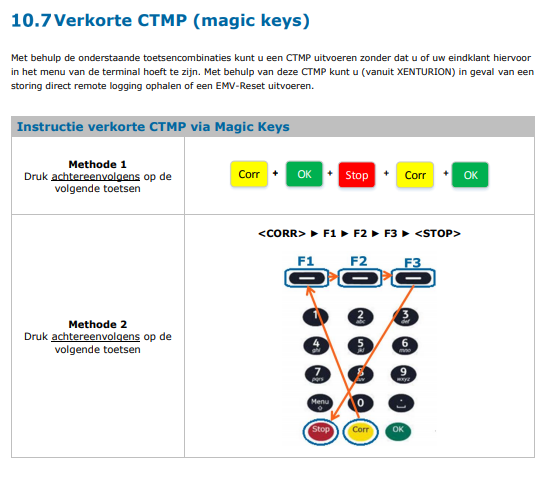
Opening the menu when MENU does not respond
Press these keys briefly one after the other. Only use the user options agreed for your configuration.
Taking a payment
With a POS integration
- Start the payment from your POS system.
- Check that the correct amount appears on the YOMANI.
- Let the customer pay contactless or insert the card and follow the instructions.
- Wait for the message that the payment was successful before completing the sale.
Without a POS integration
- On the start screen, choose the option for a sales transaction.
- Enter the amount and confirm with the green OK key.
- Let the customer pay and follow the instructions on the screen.
- Check the transaction result and, if available, hand over the customer receipt.
Viewing the last transaction
The terminal shows the details of the most recent transaction. If your version has a printer, you can reprint the last transaction ticket via the option under Klant (customer) or Handelaar (merchant).
Simple settings
Changing the language
Changing the volume
A password may be requested for merchant settings. Only use the access provided with your terminal. Never share passwords via a public form or e-mail.
Maintaining the YOMANI
- Disconnect the payment terminal from the power supply before cleaning.
- Clean the housing with a soft, slightly damp cloth.
- Use a soft, dry antistatic cloth for the screen.
- Do not use solvents, alcohol or aggressive cleaning agents.
- Periodically clean the card readers with a suitable cleaning card.
Make sure no moisture or dirt gets into the card readers, keys or connectors.
Running a CTMP
With a CTMP request, the YOMANI remotely retrieves available terminal software and configurations. Only do this when Pin Vandaag or your technical administrator asks you to.
- Choose MENU. Does MENU not respond? Then press STOP → OK → MENU in succession within two seconds.
- Choose 3 · Terminal instellen (terminal settings).
- Choose 0 · Volgende (next).
- Choose 9 · Enkel technieker (technician only).
- Enter the technician password 1235789 and press OK.
- Choose 5 · Onderhoud (maintenance).
- Choose 5 · CTMP aanvraag (CTMP request) and wait until the terminal has completed the procedure.
What can you check yourself in the event of a fault?
- Check that the terminal has power and that the power cable is firmly connected.
- Check the network and POS cable at both ends.
- See whether other devices at the same location do have an internet connection.
- Write down the full error message and the time it appears.
- Contact Pin Vandaag if the message keeps coming back.
Official Worldline manual
This online page is a practical quick guide. The official YOMANI PDF is stored locally on this website. For connections, specific POS protocols and extensive technical information, use the documentation that belongs to your version and Dutch agreement.