This manual is for PayStart
Use these steps when you take payments with the PayStart app. Open PayStart directly from the home screen. You do not need to open an app store for this.
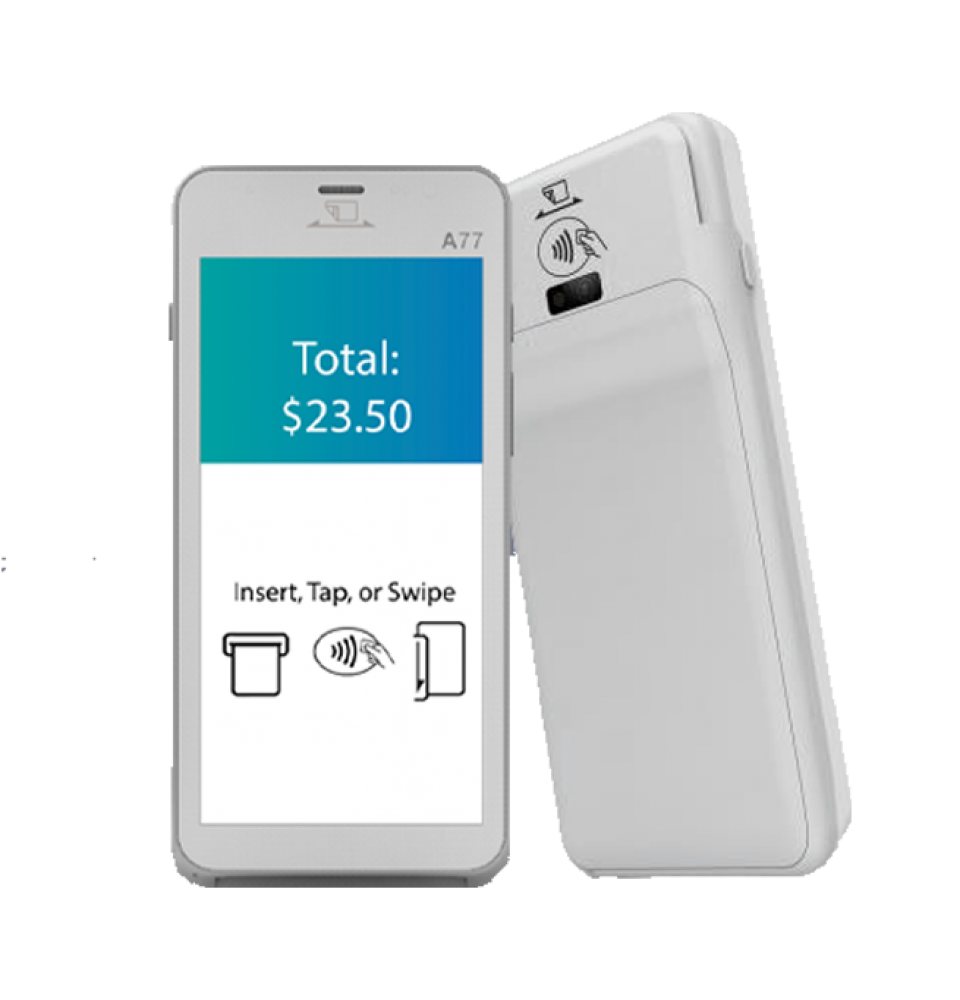
PAX A77
Compact mobile model without a built-in printer. You share a receipt digitally, for example by e-mail.
PAX A920
Mobile model with a built-in receipt printer. Operating PayStart is broadly the same as on the A77.
Starting up and charging safely
- Charge the terminal with the supplied power adapter and a suitable wall socket.
- Press and hold the power button for a few seconds until the screen lights up.
- Wait until Android and then PayStart have fully started.
- Check at the top of the screen that Wi-Fi or 4G is available before starting a payment.
Do not leave the battery fully discharged for long periods. While charging, place the device in a dry, well-ventilated place and do not use a damaged cable or adapter.
Why does the battery sometimes stop at 80%?
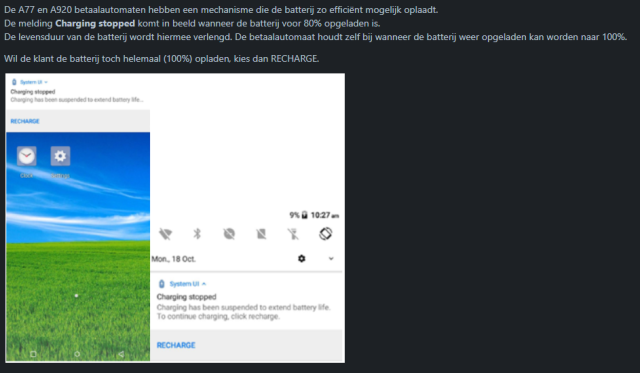
The PAX A77 and A920 may temporarily interrupt charging at around 80%. This is smart battery management: the terminal prevents the battery from being fully charged all the time and so helps to extend the battery's lifespan. The message Charging stopped therefore usually does not mean that the battery or charger is faulty.
- Leave the terminal connected; the system decides for itself when further charging is needed.
- Want to charge the battery to 100% straight away? Open the charging notification and choose RECHARGE.
- First check the charging cable and adapter if the terminal does not charge at all or shows no charging symbol.
Does an older A77 keep stopping at 80%?
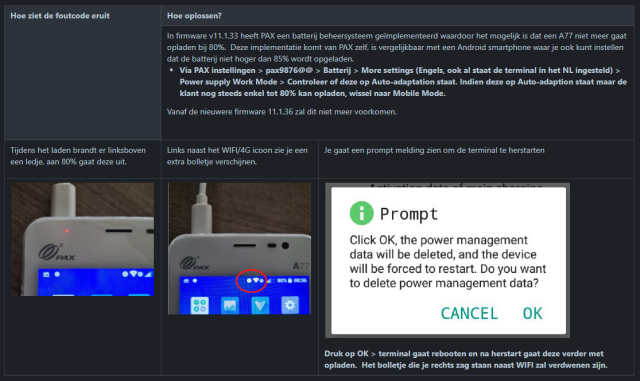
On a PAX A77 with older firmware, including version 11.1.33, the charging mode Auto-adaption or Desktop mode can prevent charging from resuming by itself. From firmware 11.1.36 onwards, this specific hang should no longer occur. Only make the change below if the problem keeps recurring and no payment is being processed.
- Open PAX Settings and log in with the authorised administrator code.
- Go to Battery, choose More settings and open Power supply Work Mode. This section may be in English, even if the terminal is set to Dutch.
- Is the charging mode set to Auto-adaption and does the battery stay stuck at 80%? Then choose Mobile Mode.
- Confirm the message with OK. The terminal restarts and then continues charging.
Connecting to Wi-Fi
- Swipe down from the top edge of the screen to open the quick settings.
- Press and hold the Wi-Fi symbol to open the Wi-Fi settings.
- Switch on Wi-Fi and tap the network you want to use.
- Enter the Wi-Fi password carefully and choose Connect.
- Wait until the chosen network shows Connected and then open PayStart.
Using mobile internet
With a correctly inserted and activated SIM card, the A77 or A920 normally connects to the mobile network automatically. Check the 4G or mobile signal at the top of the screen.
- Temporarily switch off Wi-Fi if you deliberately want to test via 4G.
- Move the terminal to a place with better coverage if the signal is weak.
- Only change the APN if Pin Vandaag or your SIM card provider gives you the exact settings.
Taking a payment in PayStart
- Open PayStart from the home screen.
- Enter the amount to be paid and check the amount before you continue.
- Choose the option to check out and hand the terminal to the customer.
- The customer holds the payment card or phone near the contactless symbol, or inserts the card when the terminal asks for it.
- Wait until PayStart clearly indicates that the payment has been approved or declined.
- Share or print the receipt if the customer wants one.
Receipts on the A77 and A920
PAX A77: digital receipt
The A77 does not have a built-in printer. After the payment, follow the options in PayStart to share the proof of payment digitally if the customer asks for it.
PAX A920: replacing the paper roll
- Open the printer cover on the top of the terminal.
- Remove the empty roll and any loose bits of paper.
- Insert a suitable thermal paper roll with the paper facing the direction indicated in the printer compartment.
- Leave a few centimetres of paper sticking out and close the cover until it clicks into place.
- If necessary, make a test transaction or test print.
A thermal roll has one printable side. If blank paper comes out, turn the roll around.
Inserting the SIM card and battery
Switch the terminal off completely and disconnect the charging cable before opening the back cover. With a ready-to-use delivery, the SIM card is usually already inserted.
PAX A77
- Carefully remove the back cover using the notch.
- Take out the battery if it covers the SIM card holder.
- Insert the SIM card according to the icon next to the SIM slot; never force the card.
- Put the battery back with the contact points facing the right way and close the back cover.
PAX A920
- Open the battery cover on the back and carefully remove the battery.
- Insert the SIM card into the indicated SIM slot according to the icon in the housing.
- Put the battery back, close the cover and restart the terminal.
Making an end-of-day closing in PayStart
- Open the PayStart app.
- At the bottom of the screen, open the section for periods or end-of-day closing.
- Choose Sluit dag af (close day).
- Enter the PayStart or administrator password provided to you.
- Follow the message on the screen to e-mail or print the report.
After the closing, a new period starts automatically. The A920 can print a report; on the A77 you use the digital output offered by PayStart.
What can you do yourself in the event of a fault?
No connection
- Check at the top of the screen whether Wi-Fi or 4G is active.
- With Wi-Fi, test whether another device on the same network has internet access.
- Switch once, in a controlled manner, between Wi-Fi and 4G and wait until the connection is restored.
- Only restart the terminal when no payment is being processed any more.
PayStart does not respond
- First wait to see whether the current task completes by itself.
- Write down the message, the amount and the time.
- Check the transaction before restarting PayStart or the terminal.
- Contact us if the app does not return to normal.
Official manuals
For the payment steps, use the official PayStart manual. The model-specific quick start guides help with hardware, charging, the SIM card and the paper roll. The PDFs below are stored locally on this website and are in Dutch. General CCV documents may show a different payment app; those transaction steps do not belong to this PayStart configuration.