Before you start
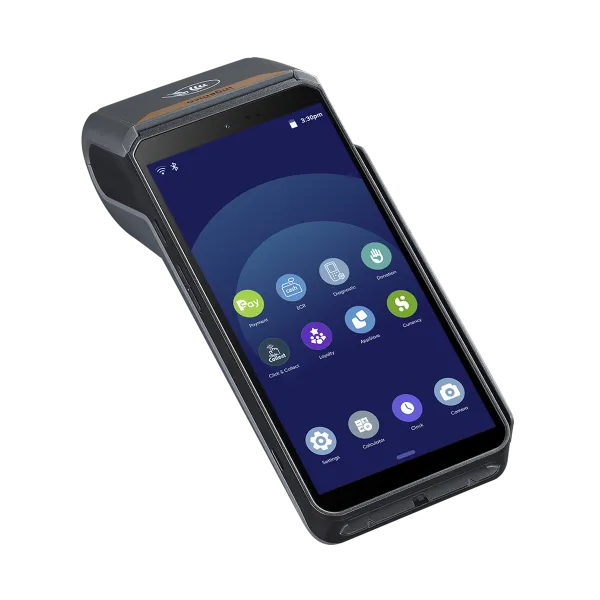
The DX8000 can be used standalone or via a POS integration. The payment app and available menus depend on the configuration supplied by Pin Vandaag.
- Use the supplied power supply and check that the terminal and charging base are undamaged.
- Make sure you have a working Wi-Fi or mobile connection before starting a payment.
- Only insert a paper roll if your DX8000 version has an integrated printer.
Connecting and starting up
- Place the terminal on the charging base or connect the official power supply.
- Press and hold the power button until the screen lights up.
- Wait until Android and the configured payment app have fully started.
- Check the connection symbol and only then carry out a test payment.
- After the initial activation, check that the amount and transaction result are displayed correctly.
Daily use
- Start the payment in the payment app or from the connected POS system.
- Check the amount before handing the terminal to the customer.
- Let the customer pay contactless or insert the card and follow the instructions.
- Wait for the final approved or declined message.
- Share or print the proof of payment if the customer wants it.
Only replace printer paper when no transaction is active. Insert thermal paper according to the icon in the printer compartment; if the printout is blank, turn the roll around.
What can you check yourself?
- Check the power supply, battery level and whether the charging base is receiving power.
- Check Wi-Fi or mobile coverage and, after a network change, wait until the connection is restored.
- Close the payment app in a controlled manner and reopen it once you are sure no payment is active any more.
- Only restart the terminal outside a transaction and write down the full error message beforehand.
Safety and maintenance
- Only use a suitable power supply approved by the manufacturer.
- Never open the terminal; security mechanisms may lock the device.
- Regularly check the housing and security labels for damage or tampering.
- Keep the terminal away from moisture, extreme heat and strong knocks.
Clean the housing with a soft, slightly damp cloth. Do not use aggressive cleaning agents and prevent moisture from entering card readers, connectors or ventilation openings.
Official documentation
This page is a practical summary by Pin Vandaag. The official PDF manuals are also stored locally on this website, so you can open them directly. For technical installation, connections and model-specific safety instructions, always use the manufacturer's documentation.